
Overview
Have you ever wondered how two gadgets can talk to each other without wires? In this project, you’ll make a ghost jump from one micro:bitThe micro:bit is a tiny programmable computer, about the size of a matchbox, made for learning to code. It has two buttons, a grid of little red LED lights and built-in sensors that can detect movement, light and temperature.Full entry → to another. Shake one micro:bit, and a ghost appears on the other!
What you'll learn
- How two micro:bits can talk to each other using radio
- How a micro:bit knows when it has been shaken
- How to show pictures on the LED MatrixThe LED matrix is the grid of little red lights on the front of the micro:bit. By switching them on and off in patterns, your code can show numbers, letters and tiny pictures.Full entry →
- How code runs one step at a time
What you'll need
- The micro:bit MakeCode editor
- 2 x micro:bits
- 1 x micro USB cable
- 2 x Battery packs for micro:bit (optional)
Key words
Accelerometer
An accelerometer is a tiny part inside the micro:bit that senses movement, like tilting, shaking or being turned over. It turns that movement into numbers your code can react to.
Real-world example: A bit like the sensor in a games controller that knows when you tilt it to steer, the accelerometer notices when the micro:bit moves.
LED Matrix
The LED matrix is the grid of little red lights on the front of the micro:bit. By switching them on and off in patterns, your code can show numbers, letters and tiny pictures.
Real-world example: Like a mini scoreboard made of dots, the LED matrix lights up to spell out your step count.
micro:bit
The micro:bit is a tiny programmable computer, about the size of a matchbox, made for learning to code. It has two buttons, a grid of little red LED lights and built-in sensors that can detect movement, light and temperature.
Real-world example: A bit like a pocket-sized computer you can program yourself, a micro:bit can become a step counter, a thermometer or even a simple game.
Radio Group
A radio group is a number that works like a secret channel. Only micro:bits with the same radio group number can send messages to each other.
Real-world example: It’s like two walkie-talkies agreeing to use channel 30, so they only hear each other.
String
A string is a line of letters or words, such as GHOST. Strings are the messages your micro:bits send to each other.
Real-world example: It’s like writing a word on a note and passing it to a friend.
Pairing
Pairing links your micro:bit to a computer or tablet so they can talk to each other and share your code.
Real-world example: It’s like connecting a pair of headphones to your phone so the music can come through.
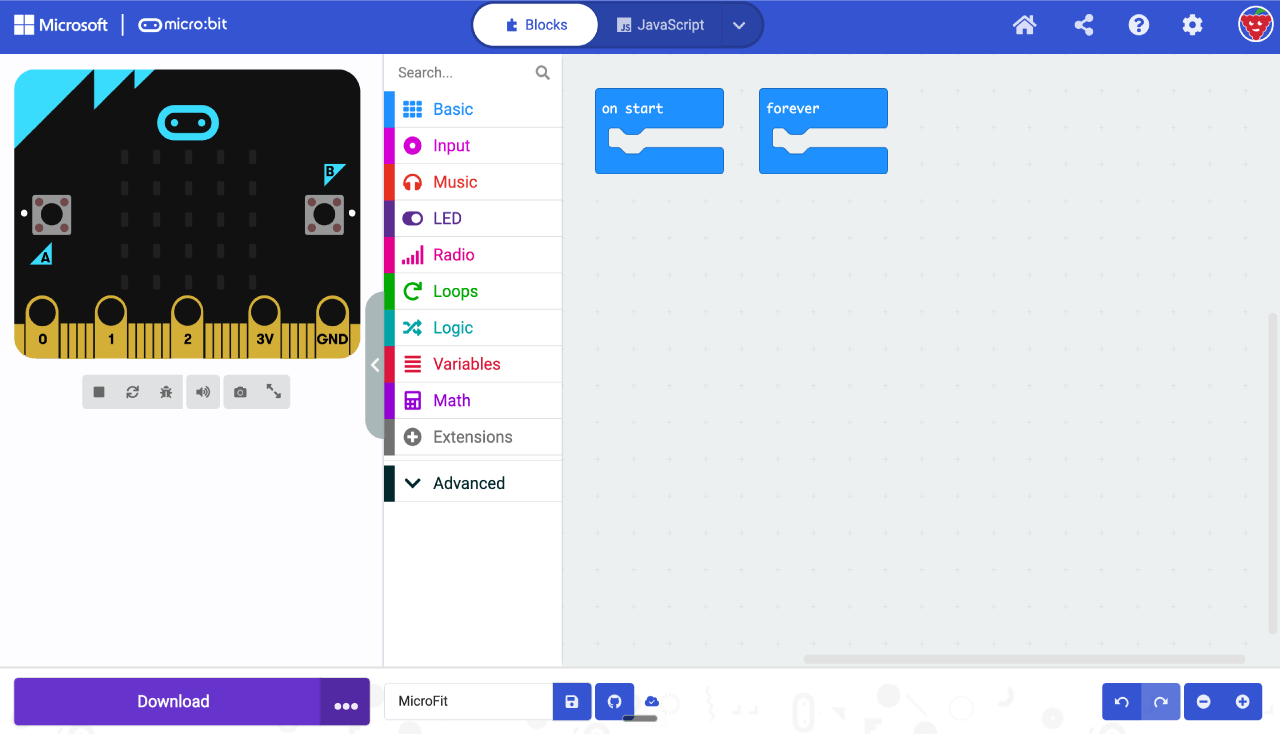
Navigating to the MakeCode Editor
On a Computer
- Open your favourite web browser. We recommend either Google Chrome or Microsoft Edge.
- In the Address bar type makecode.microbit.org.
- Select New Project and give it the name Spooky Signals.
On a Tablet or Phone
- Open the micro:bit app. If you don't have the app yet you can download it from your devices app store by searching for micro:bit.
- Select Create Code.
- Select New Project and name it Spooky Signals.
Set up the Code Area
- Select the
foreverblock and drop it on the bin icon to delete it. - Select Radio, then drag an
on radio received receivedStringblock into the code area. - Select Input, then drag an
on shakeblock into the code area.

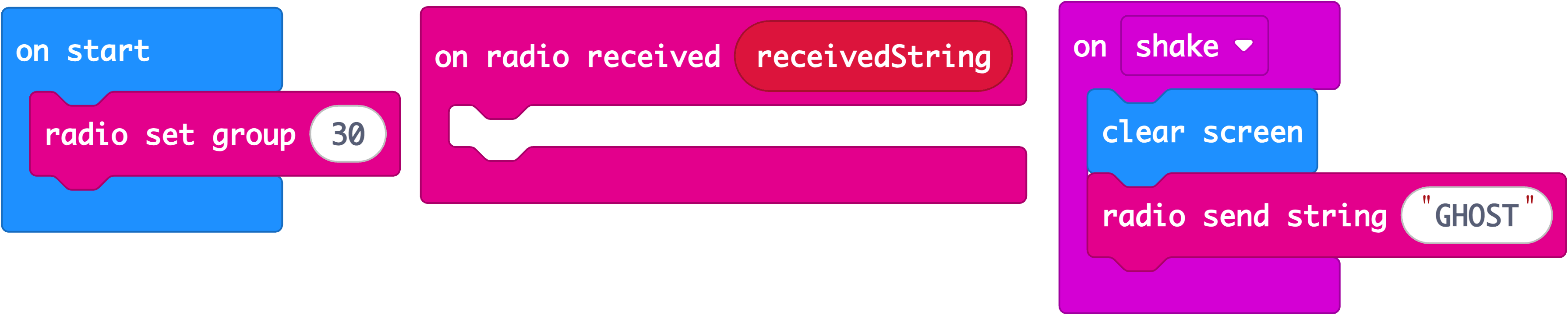
Set the radio group
- Select Radio, then drag a
radio set groupblock into theon startblock. - Change the number 1 to 30.

Send the Ghost when shaken
- Select Basic, then drag a
clear screenblock into theon shakeblock. - Select Radio, then drag a
radio send stringblock under theclear screenblock. - Type GHOST into the empty box.
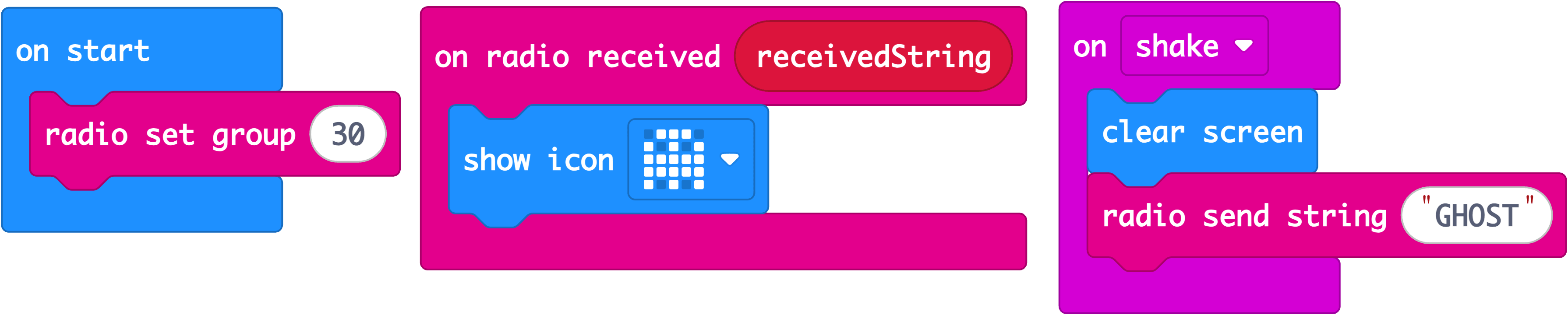
Show the ghost when a message arrives
- Select Basic, then drag a
show iconblock into theon radio received receivedStringblock. - Select the heart picture and choose the ghost picture.
Downloading Your Code
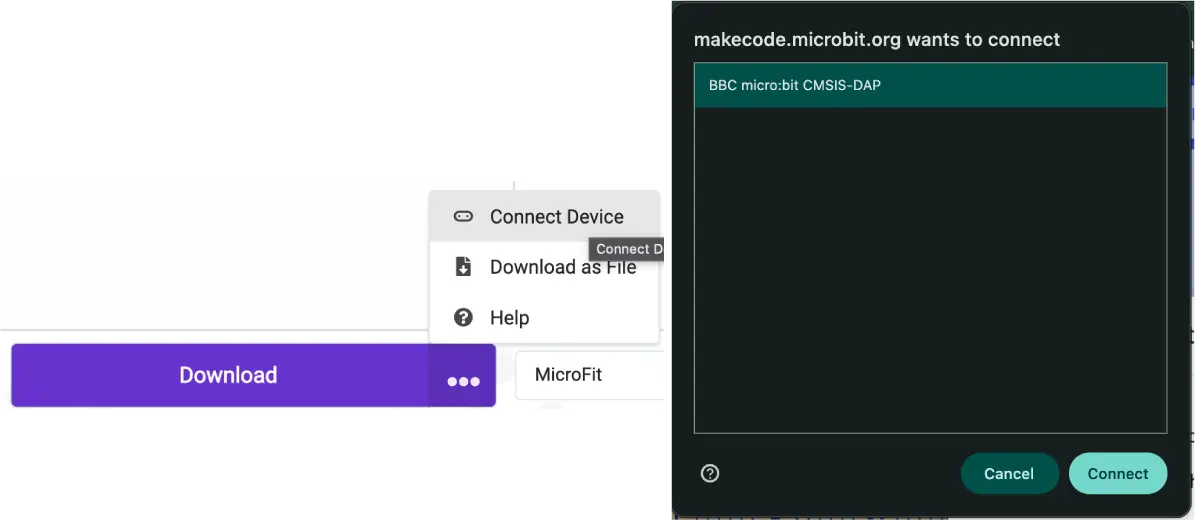
Using a Computer
- Select the three dots next to Download.
- Select Connect Device.
- Follow the on-screen instructions to connect the micro:bit.
- Select BBC micro:bit xxxxx (your micro:bit’s own name will appear here), then select Connect.
- Select Download.
Using a tablet or phone
- Select Download.
- Press the reset button on the back of the micro:bit 3 times to put it into pairing mode.
- Copy the pattern shown on the micro:bit into your app.
- Select Pair, then select Pair again on the pop-up.
- Your code will download to the micro:bit.
Important: Do this for both micro:bits!
Run it and Watch
- Unplug the micro:bits from the computer.
- Plug a battery pack into each micro:bit.
- Shake one micro:bit, then look at the other one. A ghost should appear!
Don’t have two micro:bits? You can test the code in the MakeCode simulator. Select the white dot next to the shake button on the simulator, then watch the ghost appear.
Try it yourself
Challenge: Ghost Timer
Goal: Make the ghost disappear after 3 seconds.
Hint: Add a pause (ms) block from the Basic group after the show icon block. Then add a clear screen block after it. Change the pause to 3000, because 1,000 milliseconds is one second.
Bonus: Can you make the ghost appear and disappear three times in a row? Try a repeat block from the Loops group.
Once your code works, shake the micro:bit and watch the ghost vanish. Did it work first time? That’s completely normal. Coding is all about trying, testing and trying again!
Stuck? Quick fixes
| Problem | Try this |
|---|---|
| The ghost won’t download | Use a data USB cable (not a charge-only one), make sure the micro:bit is paired, and try a different USB port. |
| Nothing happens on the micro:bit | Check the code is on both micro:bits. Make sure the battery packs are switched on and charged. Press the reset button on the back of the micro:bit. |
| The ghost doesn’t appear | Check both micro:bits use radio group 30. Move them within a metre or two of each other, and try a firmer shake. |
| Another pair’s ghost appears on your micro:bit | Give each pair a different radio group, such as 30 for one pair and 31 for another. |
| The blocks look wrong or are missing | Refresh the browser page and check you’re in the Spooky Signals project. |