
Overview
Ever wondered how a smartwatch or fitness band counts your steps? In this project, you're going to build your very own step counter using a micro:bitThe micro:bit is a tiny programmable computer, about the size of a matchbox, made for learning to code. It has two buttons, a grid of little red LED lights and built-in sensors that can detect movement, light and temperature.Full entry →!
Inside your micro:bit is a clever little sensor called an AccelerometerAn accelerometer is a tiny part inside the micro:bit that senses movement, like tilting, shaking or being turned over. It turns that movement into numbers your code can react to.Full entry →. It can feel when the micro:bit moves. We'll use it to spot every step you take, add them up, and show the total on the LED MatrixThe LED matrix is the grid of little red lights on the front of the micro:bit. By switching them on and off in patterns, your code can show numbers, letters and tiny pictures.Full entry → (the grid of lights on the front).
The best bit? When you're done, you'll have a real working fitness tracker you can pop on and take outside. Don't worry if something doesn't work first time, that's all part of coding. Let's give it a go!
What you'll learn
- Make and use your own VariableA variable is something that can change. Think of it like a labelled box: you pop something inside, and the label tells you what it is. You can swap what's inside whenever you like.Full entry →
- Use the micro:bit's shake sensor to spot movement
- Show a number on the grid of lights
- Use the buttons to control your project
- Use a While loopA while loop keeps repeating its instructions for as long as something stays true. The moment that thing stops being true, the loop stops.Full entry →
- Make decisions with If statementAn if statement checks whether something is true, and only runs its instructions when it is. It's how code makes decisions.Full entry →s
What you'll need
- The micro:bit Python editor
- micro:bit
- micro USB cable
- battery pack for the micro:bit (optional)
Key words
Variable
A variable is something that can change. Think of it like a labelled box: you pop something inside, and the label tells you what it is. You can swap what's inside whenever you like.
Real-world example: A variable called score might start at 0, then change to 1, 2 and 3 as you collect points in a game.
While loop
A while loop keeps repeating its instructions for as long as something stays true. The moment that thing stops being true, the loop stops.
Real-world example: "While it's still raining, keep the umbrella up." As soon as the rain stops, you put the umbrella down, and the loop ends.
If statement
An if statement checks whether something is true, and only runs its instructions when it is. It's how code makes decisions.
Real-world example: "If it's cold, put on a coat." If it's warm, you skip the coat, the action only happens when the check is true.
Accelerometer
An accelerometer is a tiny part inside the micro:bit that senses movement, like tilting, shaking or being turned over. It turns that movement into numbers your code can react to.
Real-world example: A bit like the sensor in a games controller that knows when you tilt it to steer, the accelerometer notices when the micro:bit moves.
LED Matrix
The LED matrix is the grid of little red lights on the front of the micro:bit. By switching them on and off in patterns, your code can show numbers, letters and tiny pictures.
Real-world example: Like a mini scoreboard made of dots, the LED matrix lights up to spell out your step count.
Button
A button is a switch you press to tell your project to do something. The code can check whether it's being pressed or not.
Real-world example: Pressing a doorbell is just like pressing a button, one press sends a signal that makes something happen.
Set up your micro:bit Python Editor
- Open your web browser. We recommend Google Chrome or Microsoft Edge.
- In the address bar type python.microbit.org.
- Give your project a name: select the project name box at the top of the editor and type MicroFit.
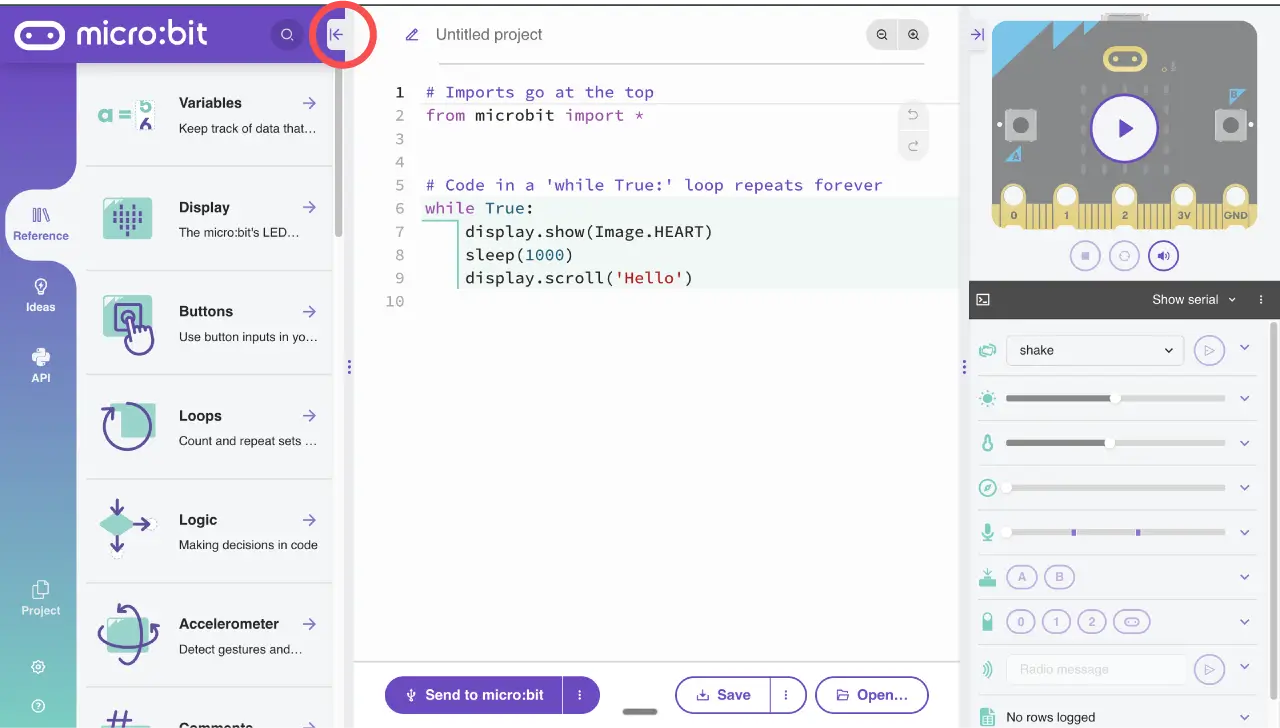
- Close the left-hand panel by selecting the arrow pointing to the left.
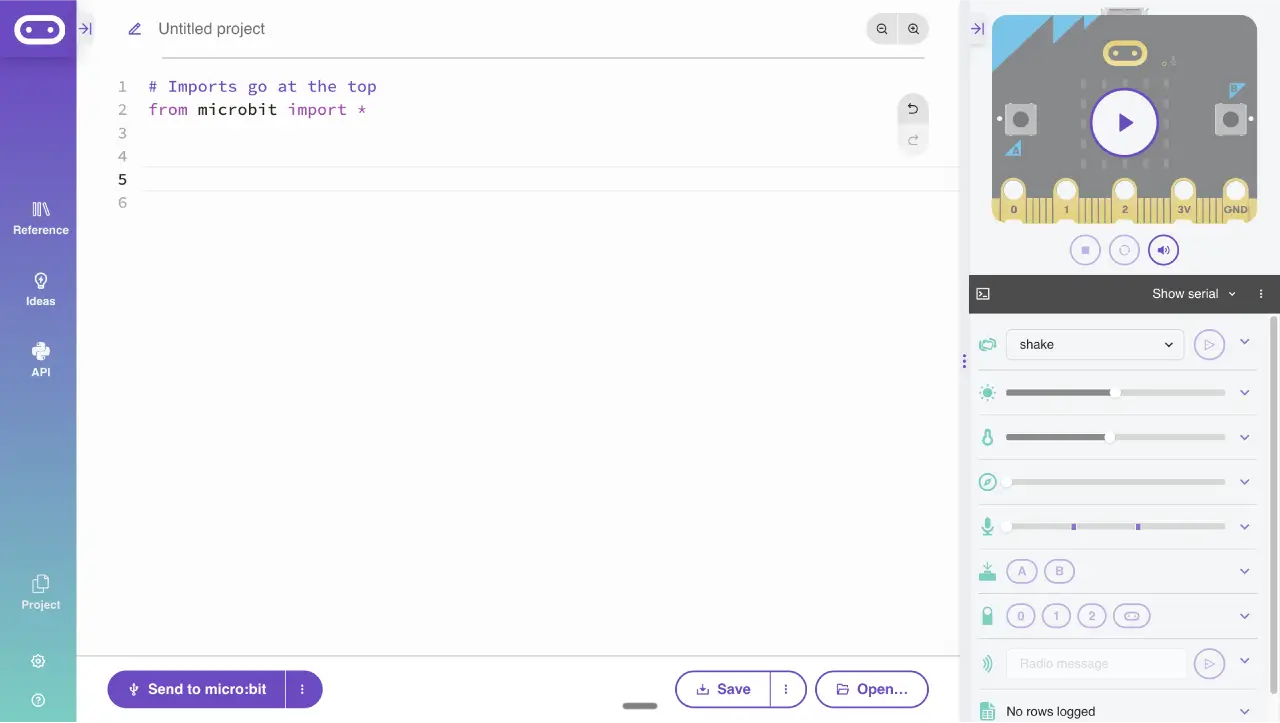
- Delete the code on lines 5 to 9 in the main code area.
Create a variable
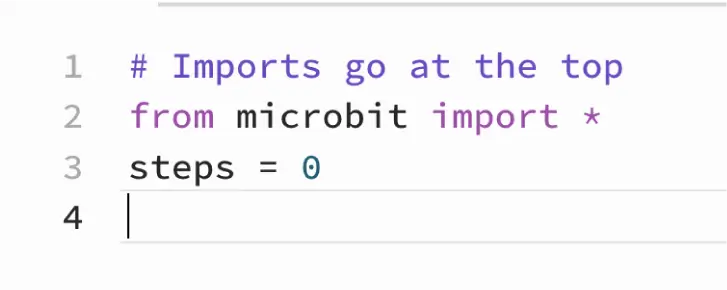
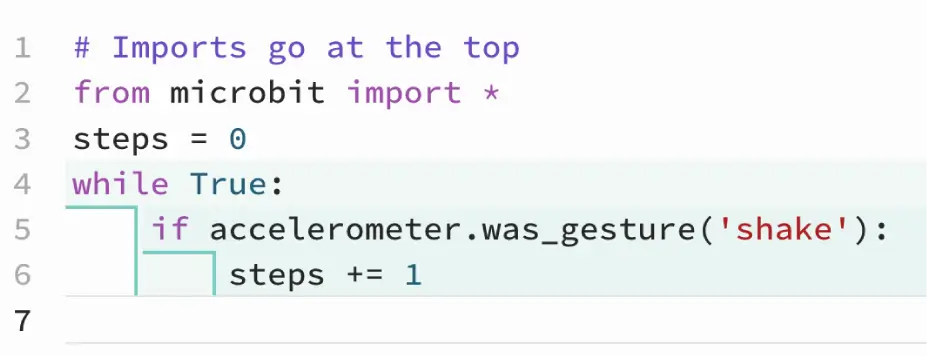
On line 3, type steps = 0 to create a VariableA variable is something that can change. Think of it like a labelled box: you pop something inside, and the label tells you what it is. You can swap what's inside whenever you like.Full entry → called steps, set to 0 for when the code starts. Press Enter to make a new line.
Create a while True loop
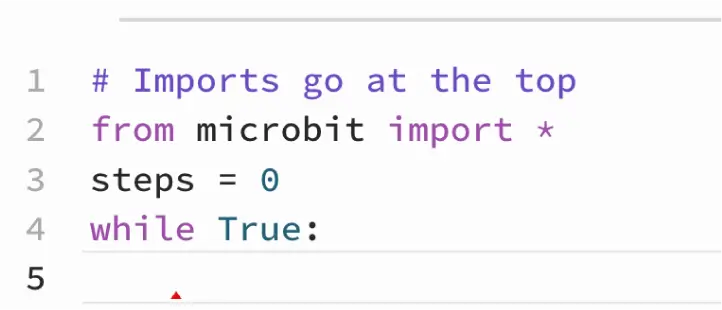
Type while True: and press Enter. This creates a While loopA while loop keeps repeating its instructions for as long as something stays true. The moment that thing stops being true, the loop stops.Full entry →, so anything inside it runs while the condition stays true. Notice your cursor automatically indents, that's how Python shows what's inside the loop.
Detect a shake
- Type
if accelerometer.was_gesture('shake'):and press Enter. The cursor indents again. - Type
steps += 1.
This If statementAn if statement checks whether something is true, and only runs its instructions when it is. It's how code makes decisions.Full entry → adds 1 to your steps variable every time the micro:bit detects a shake.
Pause the code
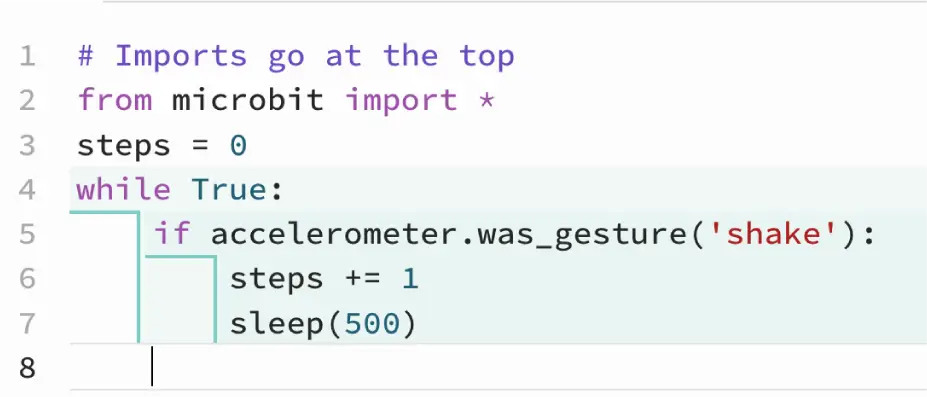
Type sleep(500). This pauses the code for half a second, giving the micro:bit time to do other things, like check for the button press we'll add next. Press Enter, then delete the indent so the cursor lines back up with the if accelerometer.was_gesture('shake'): line.
Reset the steps with button A
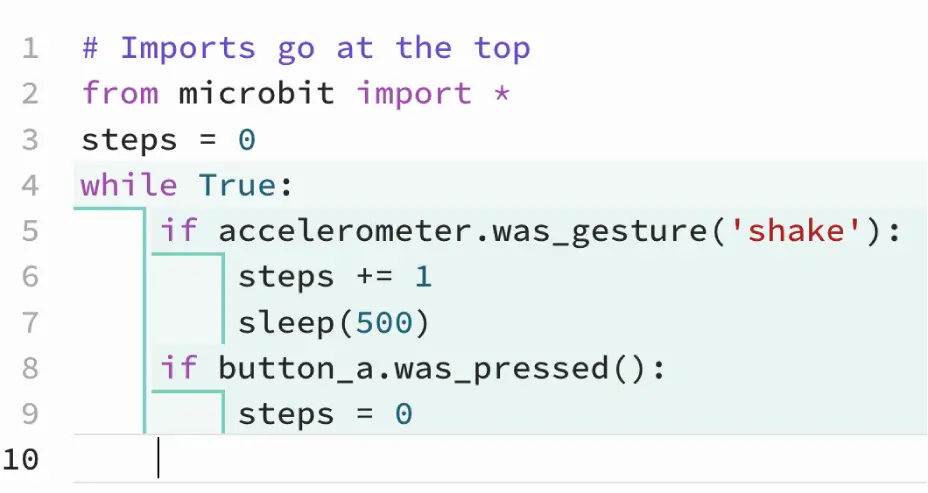
- Type
if button_a.was_pressed():and press Enter. This detects a ButtonA button is a switch you press to tell your project to do something. The code can check whether it's being pressed or not.Full entry → press, and the cursor indents. - Type
steps = 0to reset the steps variable back to 0 when button A is pressed. - Press Enter, then delete the indent so the cursor lines back up with the
if button_a.was_pressed():line.
Show the number of steps
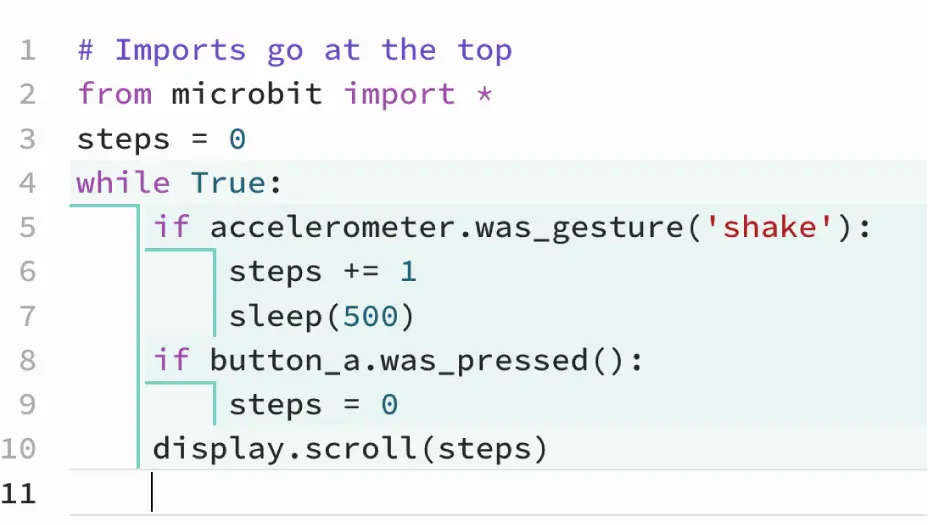
Type display.scroll(steps). This scrolls the number of steps across the LED MatrixThe LED matrix is the grid of little red lights on the front of the micro:bit. By switching them on and off in patterns, your code can show numbers, letters and tiny pictures.Full entry → on the front of the micro:bit.
Downloading Your Code
- Connect the micro:bit to the computer with the micro USB cable.
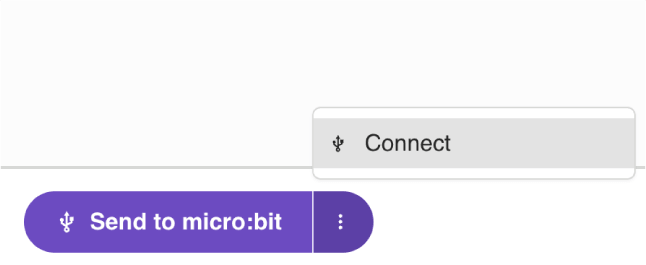
- Select the three dots next to Send to micro:bit.
- Select Connect and follow the on-screen prompts.
- Select Send to micro:bit to download the code.
Run it and Watch
In the web browser
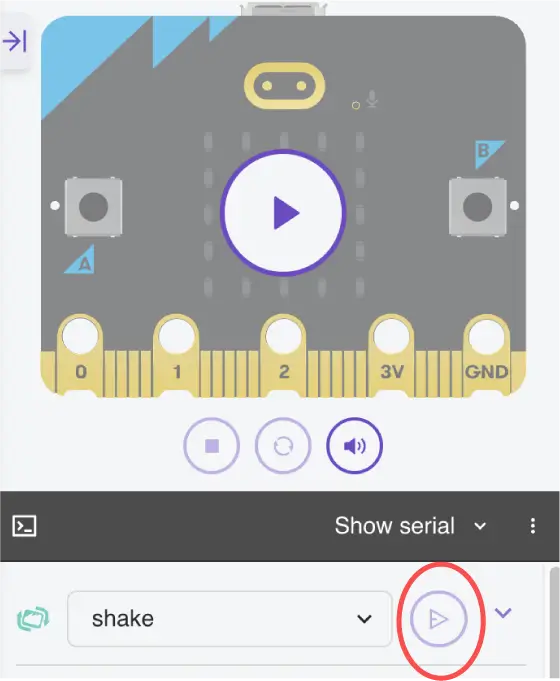
The Python editor has a built-in micro:bit simulator, handy if you haven't got a micro:bit to hand. Below the simulator you'll see the shake function is already selected. Select the play button next to it to simulate a shake and show your step count on the LED matrix.
On a real micro:bit
Once your code's downloaded, give the micro:bit a shake and watch the step counter climb. Why not go further? Attach a battery pack, strap the micro:bit to you or pop it in your pocket, and head outside to see how many steps you can rack up.
Try it yourself
Challenge: Set yourself a step goal! Add another if statement inside your while True: loop that checks if steps >= 20:. When you hit it, type display.show(Image.HAPPY) to show a happy face and celebrate, then press button A to reset and go again.
Stuck? Quick fixes
| Problem | Try this |
|---|---|
| The number doesn't go up when I shake it | Check your steps += 1 line is indented inside the if accelerometer.was_gesture('shake'): statement. Give the micro:bit one firm, clear shake. |
| The count jumps up by lots at once | A big wobble can look like several shakes. Try one single, definite shake, and check the sleep(500) line is inside your while True: loop so each shake has time to register. |
| Nothing shows on the LED matrix | Make sure you've typed display.scroll(steps) with steps inside the brackets, and that the line is indented inside your while True: loop. |
| The number doesn't change straight away when I shake fast | That's okay, it's still counting! The micro:bit can't show the new number while the last one is still scrolling. Stop shaking for a moment and your latest total will pop up. |
| Button A won't reset the steps | Check the steps = 0 line is indented inside the if button_a.was_pressed(): statement. |
| My code won't download to the micro:bit | Use a data USB cable (not a charge-only one), make sure the micro:bit is paired, and try a different USB port. |