
Overview
In this tutorial we're going to control a Servo motorA servo motor is a special motor that turns to an exact position you tell it, like 0 or 90 degrees, instead of just spinning round and round.Full entry → using the Motor controllerA motor controller is the part that sits between your board and a motor, passing on the right amount of power so the motor moves the way your code asks.Full entry → on the PicoBricksPicoBricks is an all-in-one coding kit that joins up handy parts, like a screen, a buzzer, buttons and lights, onto one board, so you can build projects without any fiddly wiring.Full entry → board.
What you'll learn
- How to connect a servo motor to the PicoBricks through the motor controller.
- How to control the servo motor through code.
What you'll need
- PicoBricks
- Servo motor
- USB to MicroUSB cable
Key words
Servo motor
A servo motor is a special motor that turns to an exact position you tell it, like 0 or 90 degrees, instead of just spinning round and round.
Real-world example: Like the hand on a clock moving to point at a number, a servo turns to the exact angle you ask for.
Motor controller
A motor controller is the part that sits between your board and a motor, passing on the right amount of power so the motor moves the way your code asks.
Real-world example: Like a remote control for a toy car, it takes your instructions and makes the motor do them.
PicoBricks
PicoBricks is an all-in-one coding kit that joins up handy parts, like a screen, a buzzer, buttons and lights, onto one board, so you can build projects without any fiddly wiring.
Real-world example: It's a bit like a Lego baseboard for electronics: everything clicks together in one place, ready to code.
Forever loop
A forever loop repeats its instructions again and again without ever stopping (until you switch off or reset). It's perfect for anything you want to keep happening over and over.
Real-world example: Like a clock's second hand that keeps ticking round and round, a forever loop keeps running the same steps over and over.
Wire up the servo motor
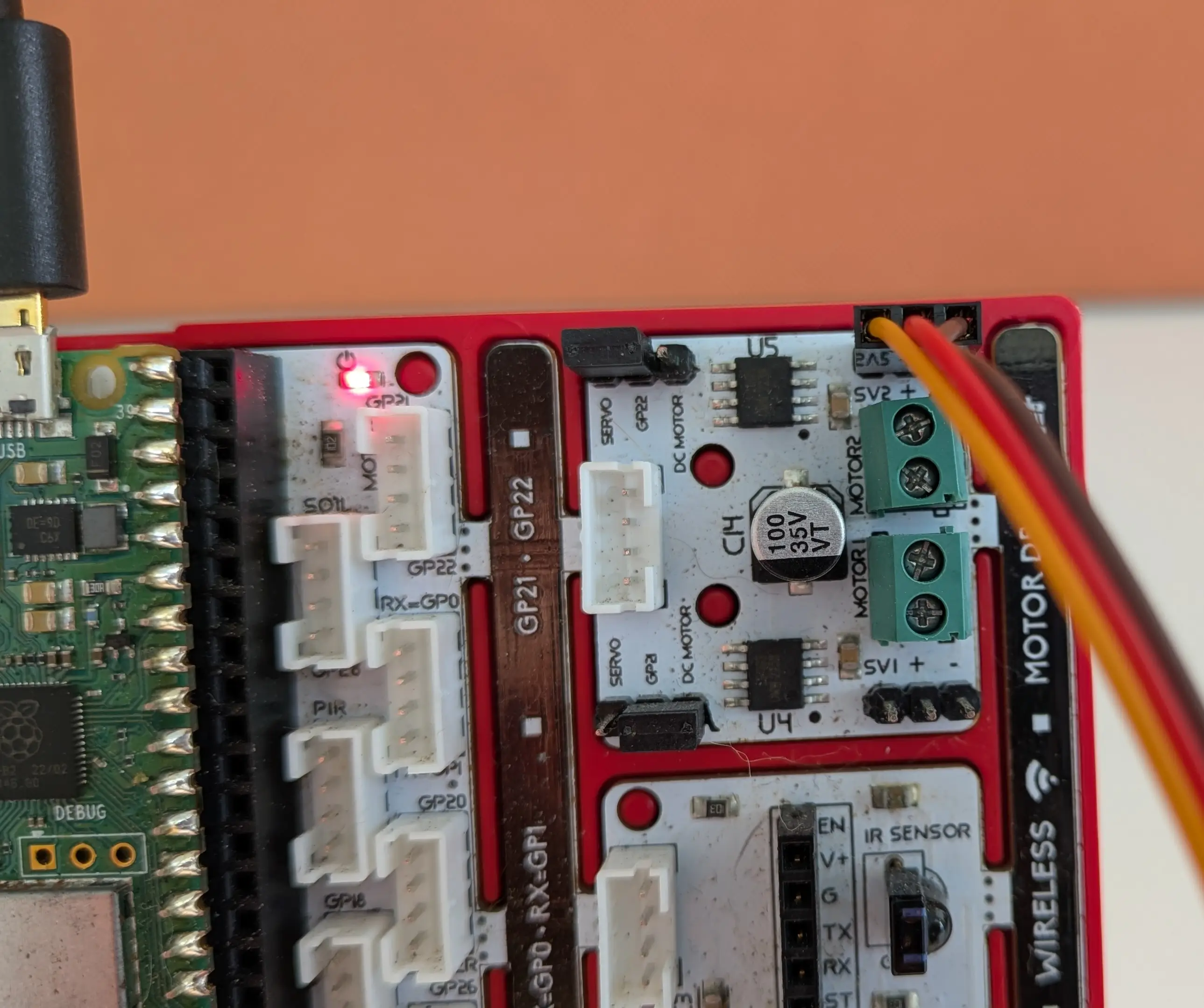
Connect the servo motor to the top connector of the motor controller with the yellow wire on the left pin. There's also a jumper across three pins. Make sure it's set for the servo motor, which means the jumper should be pushed as far left as it can go.
Set up your PicoBricks
- Connect the PicoBricks board to your computer using the USB cable.
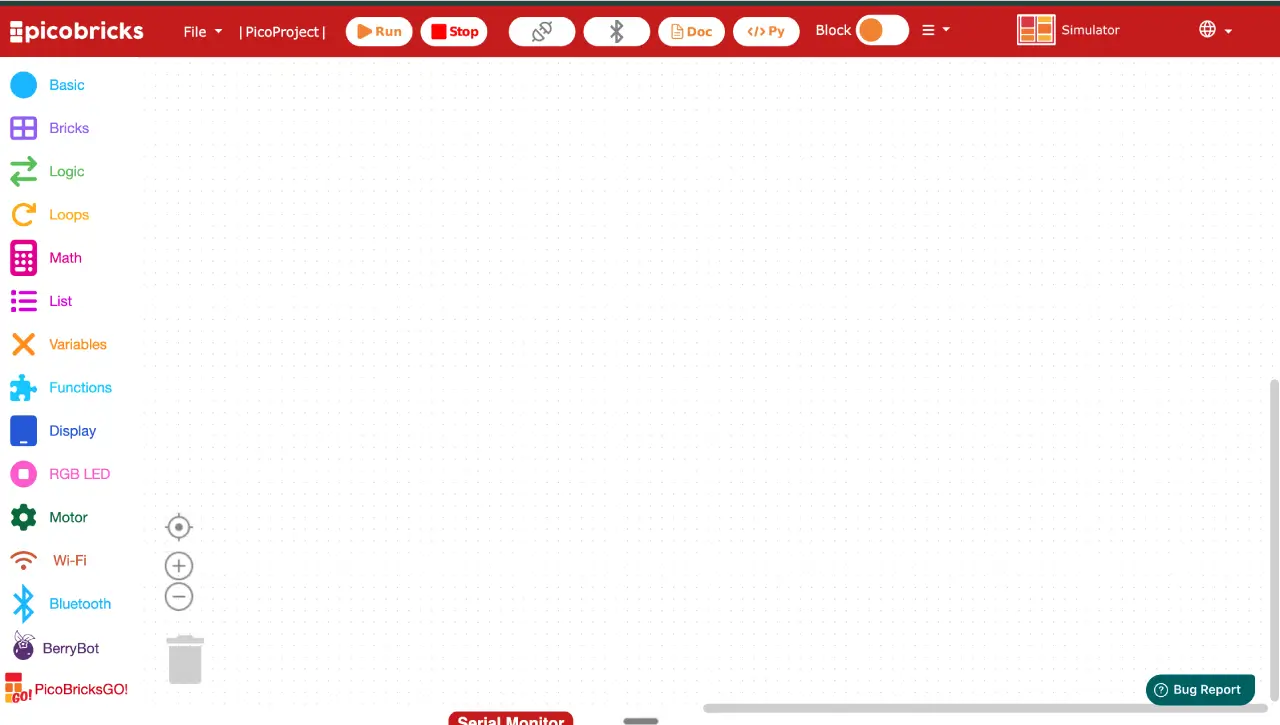
- Open your favourite web browser (we recommend Google Chrome or Microsoft Edge), go to ide.picobricks.com and select PicoBlockly.
- Connect the board to the coding environment by selecting the connect button at the top of the code area.
Build the code
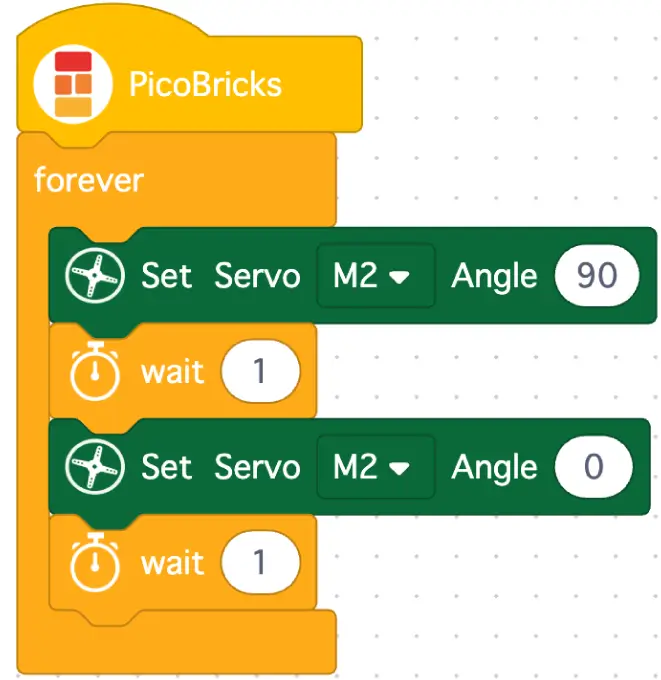
- Select Basic. Drag a
PicoBricksblock into the code area. - Select Loops. Snap a
foreverblock onto thePicoBricksblock. - Select Motor. Snap a
Set Servo M1 Angle 180block inside the forever block. Change M1 to M2, and change 180 to 90. - Select Loops. Snap a
waitblock under theSet Servo M2 Angle 90block. - Select Motor. Add another
Set Servo M1 Angle 180block under thewait 1block. Change M1 to M2 and 180 to 0. - Select Loops. Snap a
waitblock under the `Set Servo M2 Angle 0` block.
Run it and Watch
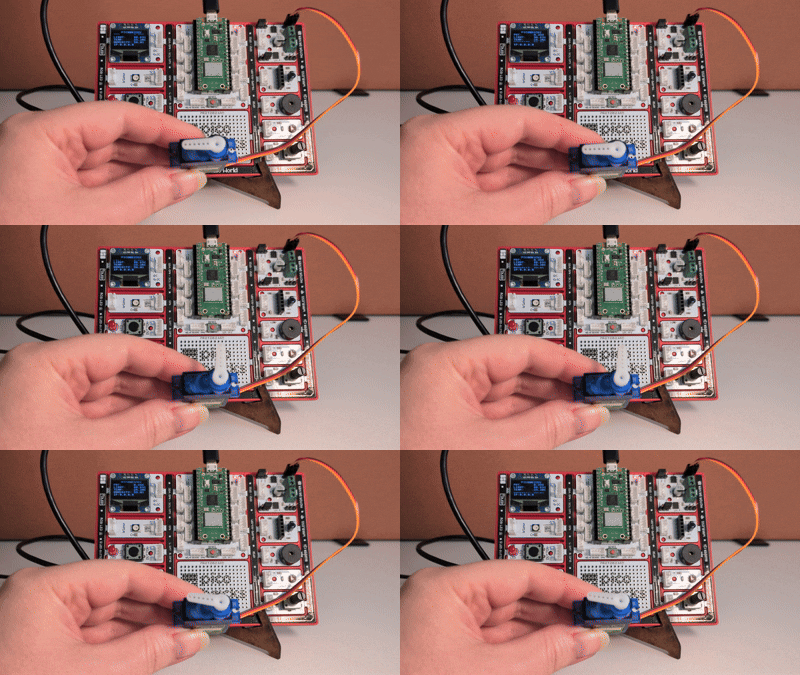
Now the code's finished, let's run it. Select the Run button at the top of the code area. You should see the little arm on the servo motor move between 90 and 0 degrees.
Try it yourself
Challenge: Can you make the arm wave? Try adding more `Set Servo` blocks with different angles (like 0, 45 and 90), with a `wait` block after each one. What happens if you make the `wait` times shorter? Does the arm move faster?
Stuck? Quick fixes
| Problem | Try this |
|---|---|
| The servo isn't moving at all | Check the servo is on the top connector with the yellow wire on the left pin, and that the USB cable is plugged in properly. |
| The servo twitches or buzzes but won't turn | Check the jumper is pushed fully to the left so it's set for the servo. |
| The code won't run | Make sure you pressed the connect button and your board is connected in PicoBlockly before pressing Run. |
| The arm only moves once, then stops | Check all your blocks are inside the forever loop so they keep repeating. |
| The arm moves to the wrong place | Check you changed M1 to M2 on every block, and that your angles are set to 90 and 0. |